Archive for the ‘Addon Hardware’ Category
HPE Alletra Storage MP B10000 – integrated with Elastic Stack enabling scalable data analytics and real time monitoring
Freitag, Januar 16th, 2026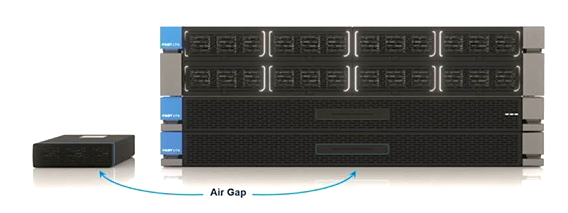
HPE StoreOnce Gen5 – Technical Demonstration
Dienstag, Januar 13th, 2026HP EliteBoard G1a Next Gen AI PC – is a computer-in-a-keyboard with an AMD Ryzen AI 300 PRO processor
Donnerstag, Januar 8th, 2026
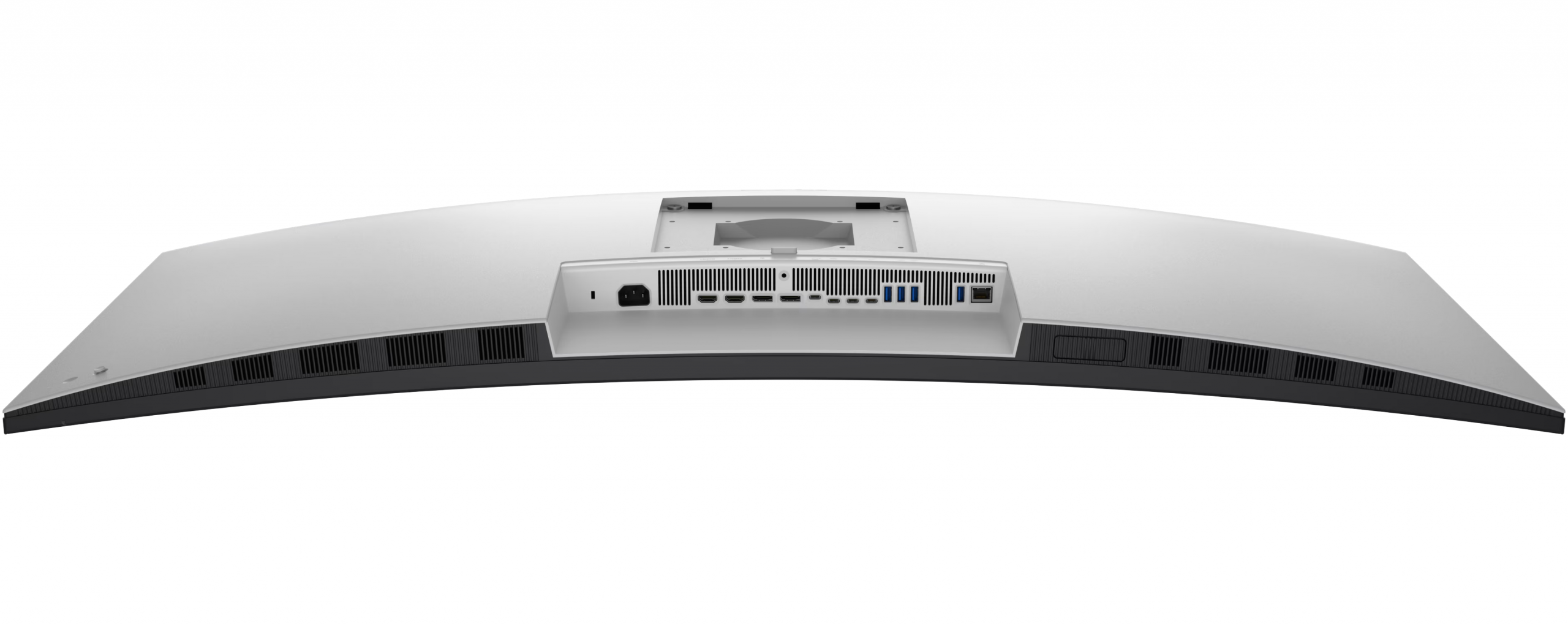
Dell UltraSharp 52 Thunderbolt-Hub-Monitor U5226KW – der 52″ 6K Monitor der den Schreibtisch revolutioniert kann über Thunderbolt angesteuert werden und verfügt über einen KVM Switch mit USB plus Ethernet Port(s)
Mittwoch, Januar 7th, 2026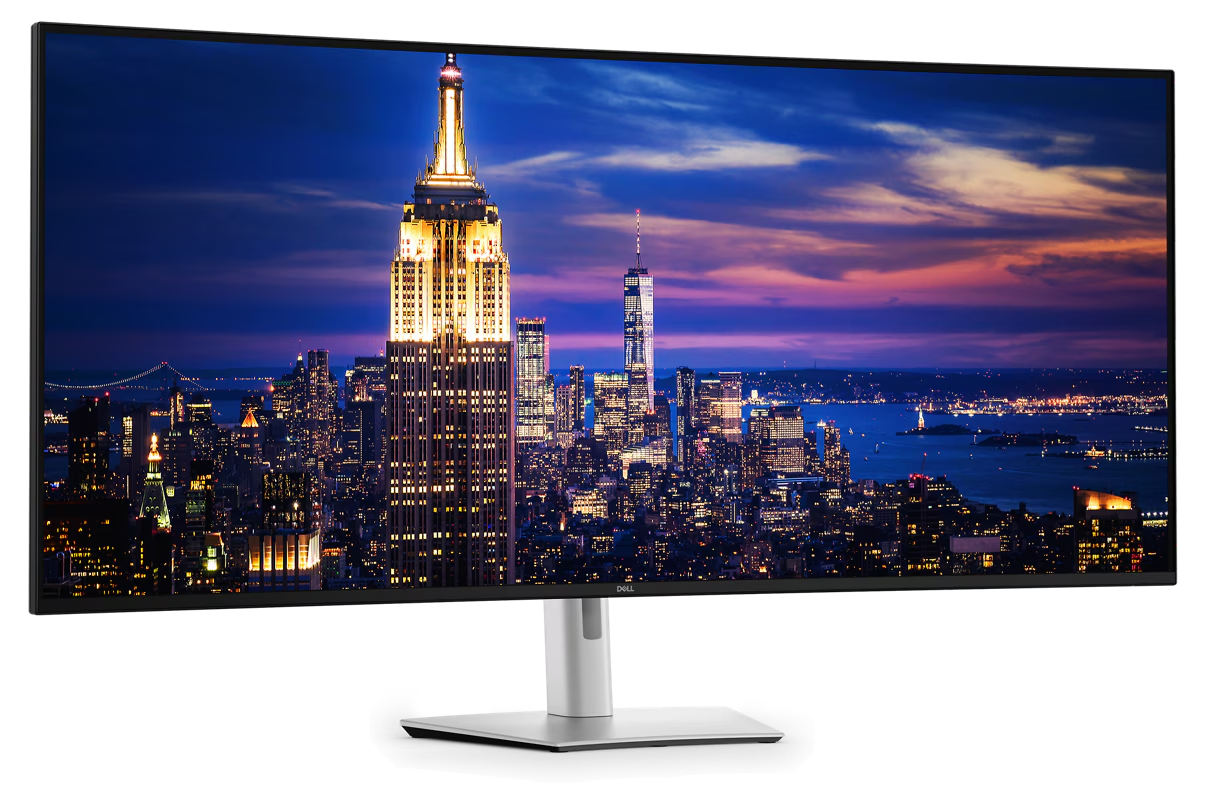
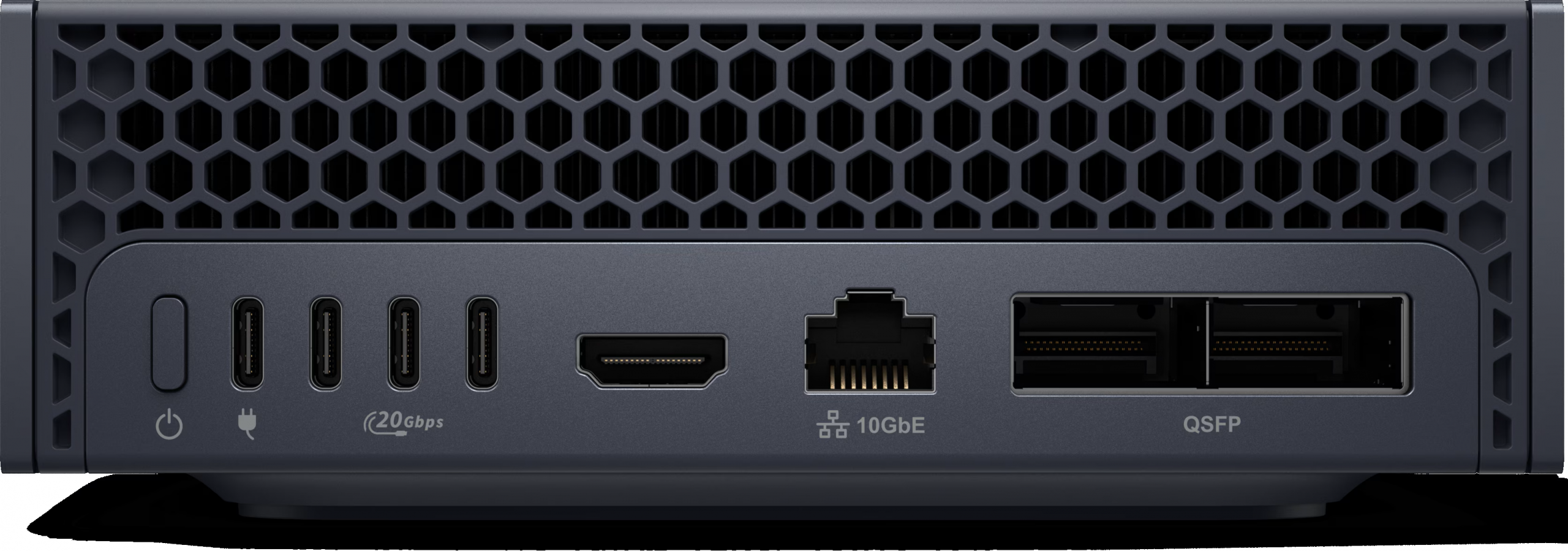
Dell Pro Max GB10 – accelerated by the NVIDIA GB10 Grace Blackwell Superchip delivering up to 1 PetaFlop (1.000 TOPS) of AI performance so your AI development journey can start now
Freitag, Dezember 26th, 2025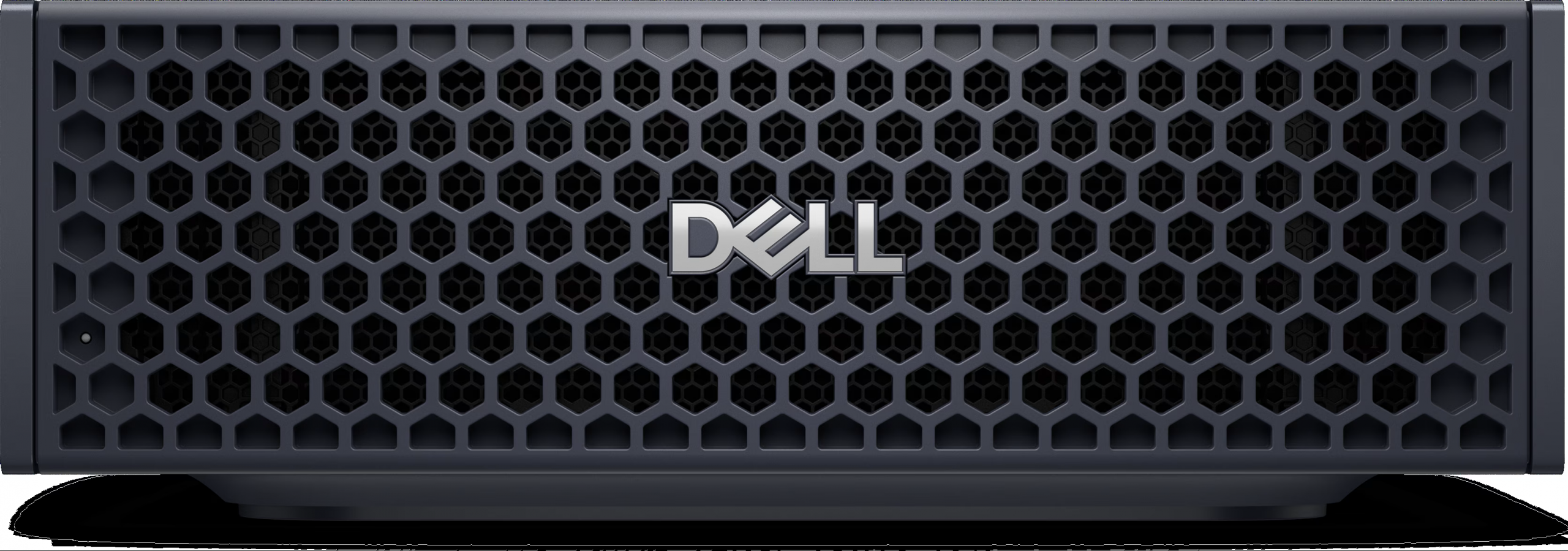
HPE Morpheus VM Essentials Software – präsentierte auf der HPE Discover Barcelona 2025 eine angriffslustige Strategie gegen hohe Virtualisierungskosten und stellt neue Morpheus Features vor
Mittwoch, Dezember 17th, 2025HPE Morpheus VM Essentials Software – Provision a Virtual Machine
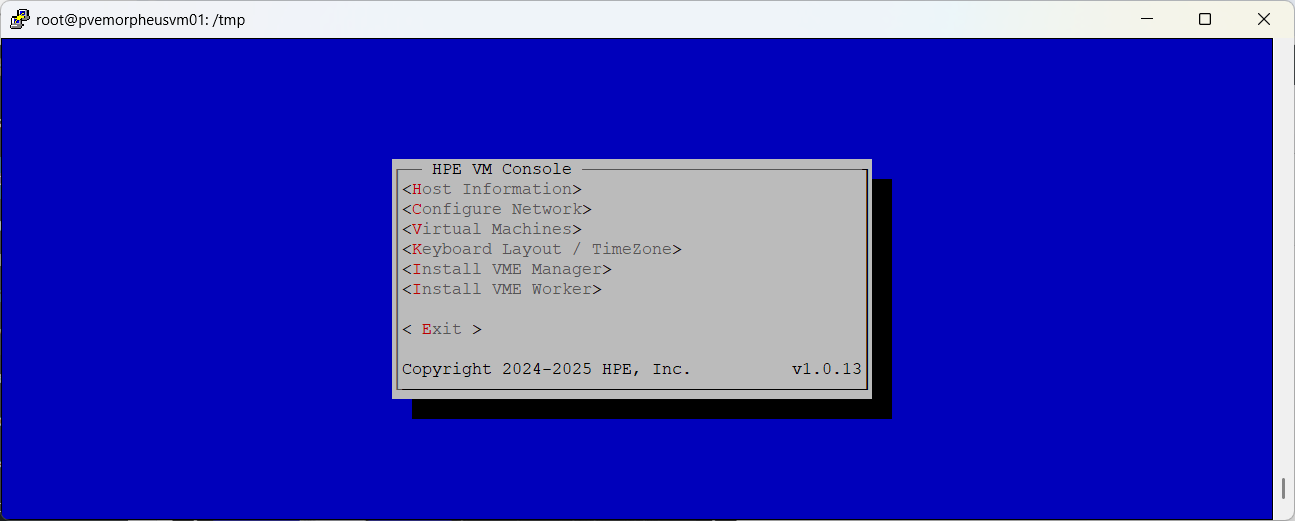
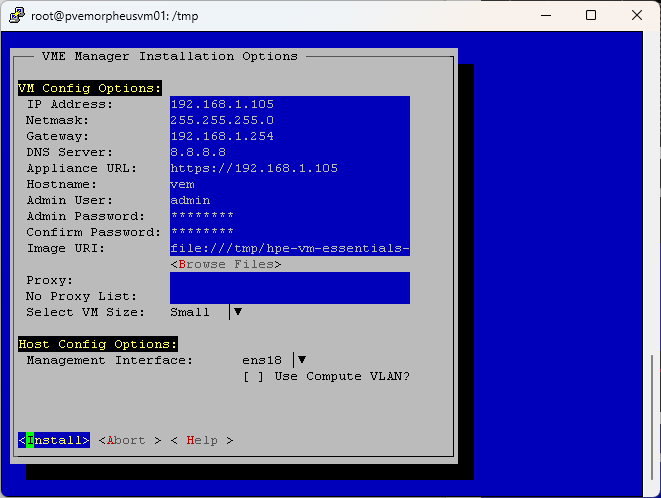
Montag, Dezember 15th, 2025HPE Morpheus VM Essentials Software – installation #1 #2 #3 #4 #5
Samstag, Dezember 13th, 2025root@pvemorpheusvm01:~# apt-get install linux-generic-hwe-22.04
Reading package lists… Done
Building dependency tree… Done
Reading state information… Done
E: Unable to locate package linux-generic-hwe-22.04
E: Couldn’t find any package by glob ‚linux-generic-hwe-22.04‘
E: Couldn’t find any package by regex ‚linux-generic-hwe-22.04‘
root@pvemorpheusvm01:~#
root@pvemorpheusvm01:~# mkdir /media/cdrom
root@pvemorpheusvm01:~# mount /dev/sr0 /media/cdrom
mount: /media/cdrom: WARNING: source write-protected, mounted read-only.
root@pvemorpheusvm01:~# df -k
Filesystem 1K-blocks Used Available Use% Mounted on
tmpfs 1018452 1120 1017332 1% /run
/dev/mapper/ubuntu–vg-ubuntu–lv 15371208 4664076 9904524 33% /
tmpfs 5092244 17568 5074676 1% /dev/shm
tmpfs 5120 0 5120 0% /run/lock
tmpfs 5092244 0 5092244 0% /run/qemu
/dev/sda2 1992552 199220 1672092 11% /boot
tmpfs 1018448 16 1018432 1% /run/user/1000
/dev/sr0 6701778 6701778 0 100% /media/cdrom
root@pvemorpheusvm01:~#
root@pvemorpheusvm01:~# cd /media/cdrom
root@pvemorpheusvm01:/media/cdrom# ls -la
total 6701744
dr-xr-xr-x 2 root root 280 Nov 19 02:08 .
drwxr-xr-x 3 root root 4096 Dec 13 16:37 ..
-r–r–r– 1 root root 34477156 Nov 13 16:38 hpe-vm_1.0.13-1_amd64.deb
-r–r–r– 1 root root 6828094193 Nov 19 02:08 hpe-vm-essentials-8.0.11-1.qcow2.gz
-r–r–r– 1 root root 2181 Nov 19 01:58 README
-r–r–r– 1 root root 194 Nov 19 02:08 SHA256.txt
root@pvemorpheusvm01:~# cp hpe* /tmp
root@pvemorpheusvm01:~# cd /tmp
root@pvemorpheusvm01:/tmp# umount /media/cdrom
root@pvemorpheusvm01:/tmp# apt-get install /tmp/hpe-vm_1.0.13-1_amd64.deb
root@pvemorpheusvm01:~# hpe-vm
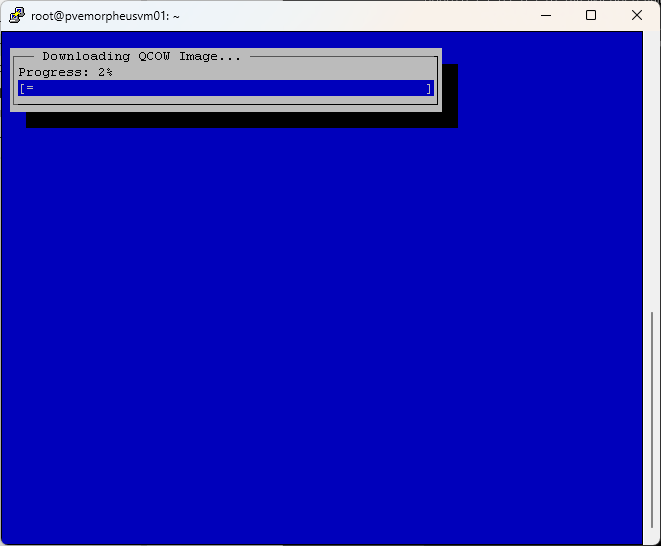
HPE Morpheus VM Essentials Software 8.0.6 – Installing & Configuring
Freitag, Dezember 12th, 2025HPE Morpheus VM Essentials Software – is a unified virtualization solution that simplifies management across both VMware and HPE’s KVM based HVM hypervisor
Freitag, Dezember 12th, 2025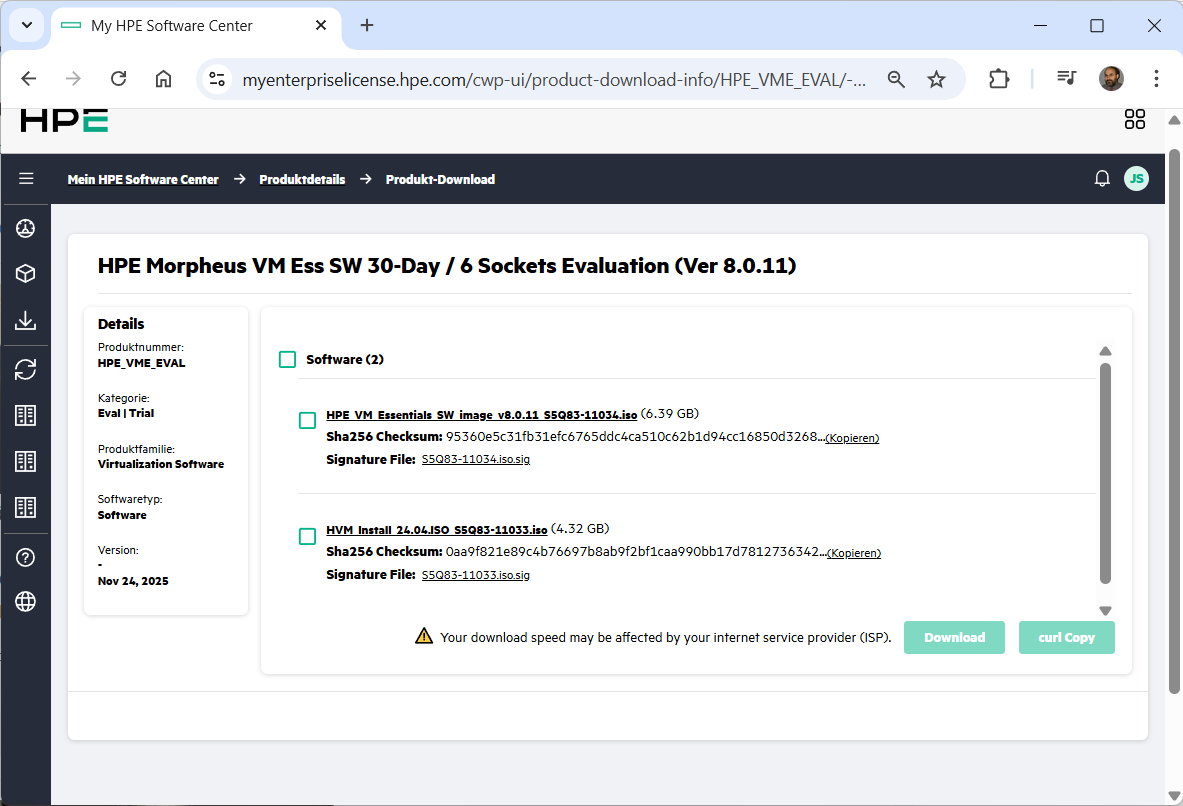
Lenovo ThinkSystem SR630 V3 – UEFI Setup for ThinkAgile MX nodes using V3 servers
Samstag, November 29th, 2025Um die maximale Performance auf einem ThinkSystem SR630 V3 zu aktivieren müssen Sie im UEFI Setup den entsprechenden vordefinierten Betriebsmodus (Operating Mode) auswählen
Anleitung zur Aktivierung im UEFI Setup
Server starten und UEFI aufrufen:
Schalten sie den Server ein oder starten Sie ihn neu
Drücken sie sobald die entsprechende Aufforderung am unteren Bildschirmrand erscheint wiederholt die Taste F1 um das System-Setup (UEFI Menü) aufzurufen
Zu den Betriebseinstellungen navigieren:
Navigieren sie im UEFI Menü zu System Settings (Systemeinstellungen) > Operating Modes (Betriebsmodi)
„Maximum Performance“ auswählen:
Wählen sie unter Choose Operating Mode (Betriebsmodus auswählen) die Option Maximum Performance (Maximale Leistung) aus
Dieser Modus maximiert die absolute Leistung des Systems wobei die Energieeffizienz zweitrangig ist und die meisten Energiesparfunktionen deaktiviert werden
Einstellungen speichern und neu starten:
Speichern sie die Änderungen und beenden Sie das UEFI Setup
Der Server wird neu gestartet damit die neuen Einstellungen wirksam werden
Hinweis: Es wird empfohlen, den Betriebsmodus „Maximum Performance“ als Basis zu wählen bevor sie versuchen einzelne UEFI Parameter manuell feinabzustimmen da sonst einige spezifische Einstellungen möglicherweise nicht verfügbar sind
Detailliertere Informationen zu den verschiedenen Betriebsmodi findet man im Lenovo Press Dokument zur Abstimmung von UEFI-Einstellungen für Intel Xeon SP Prozessoren
Lenovo ThinkSystem SR650 V3 – UEFI Setup for ThinkAgile MX nodes using V3 servers
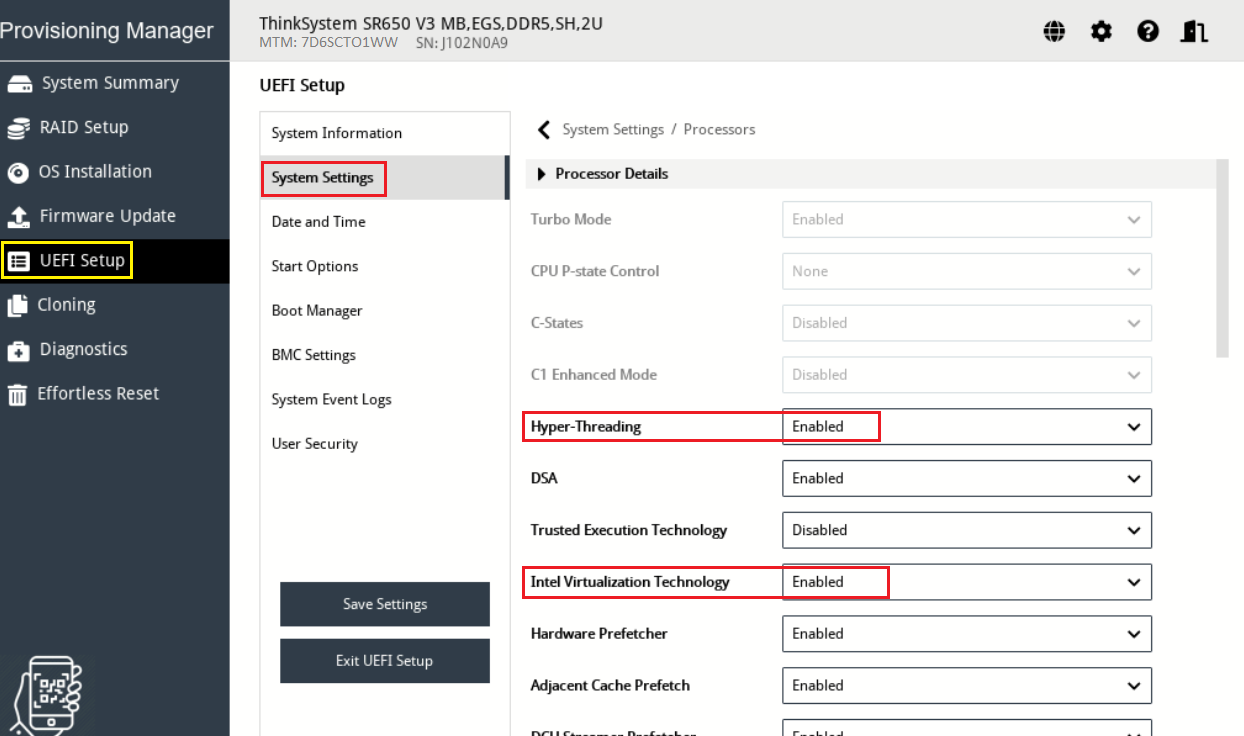
Freitag, November 21st, 2025UEFI Setup > System Settings > Operating Modes. Ensure that Choose Operating Mode is set to Maximum Performance
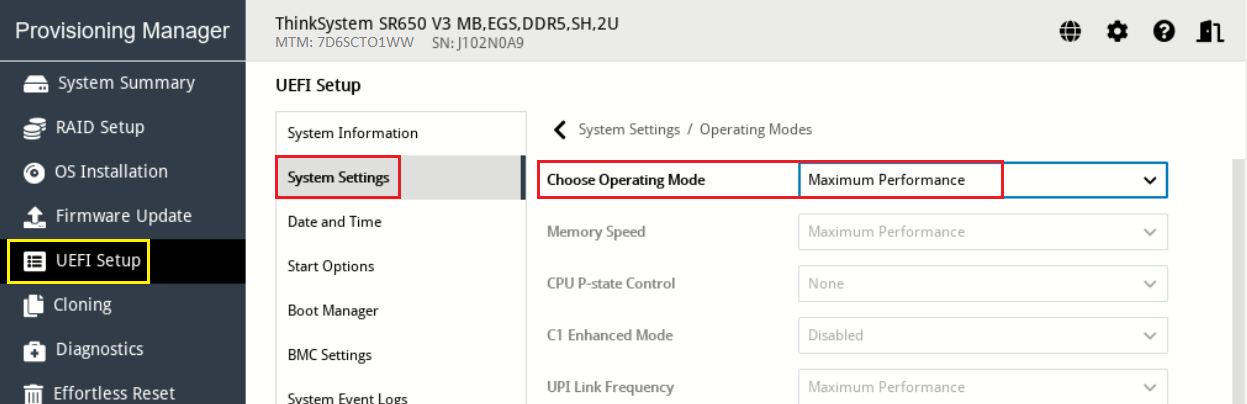
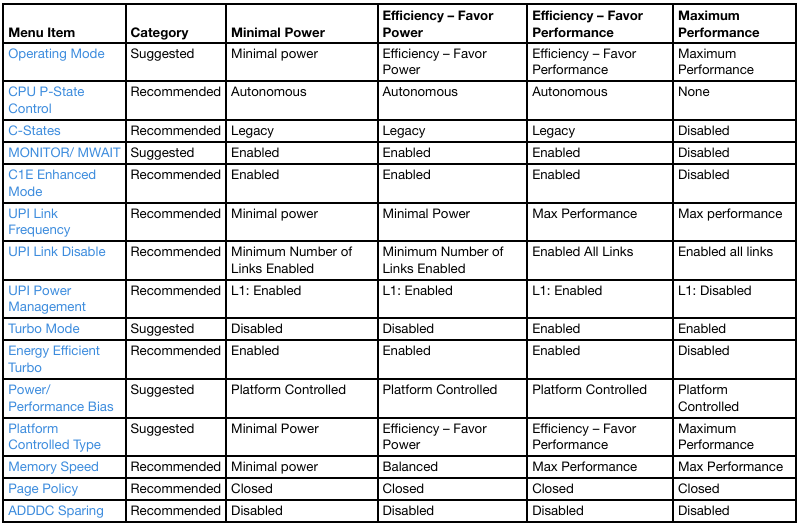
. Ensure that Hyper-Threading and Intel Virtualization Technology are set to Enabled
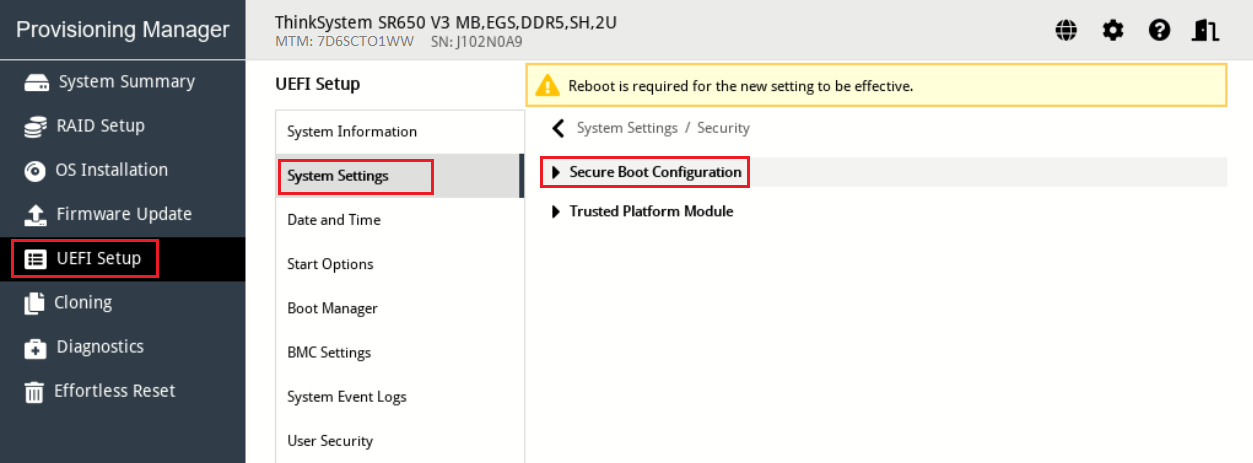
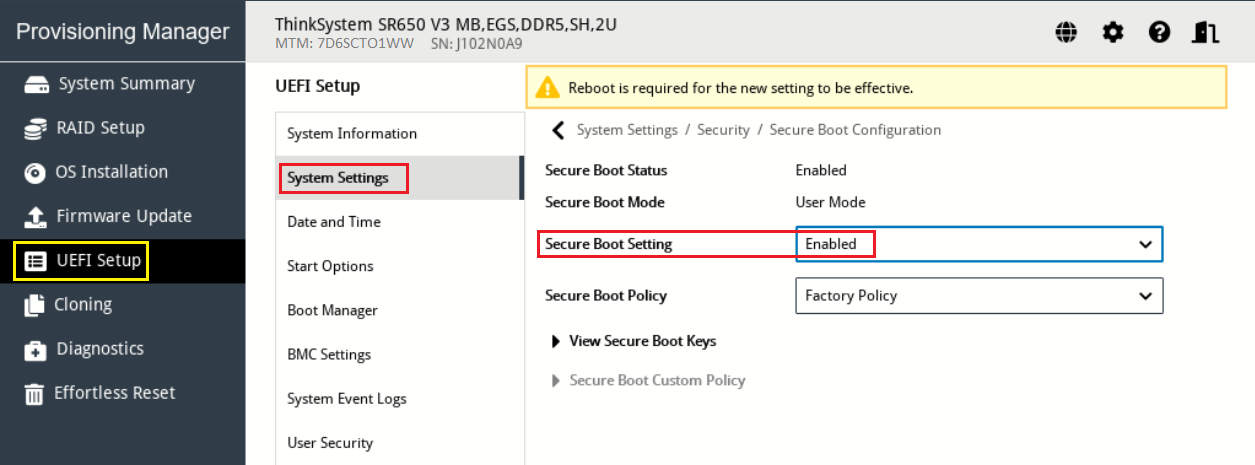
UEFI Setup > System Settings > Security > Secure Boot Configuration
Lenovo XClarity Essentials OneCLI – how to set energy settings on a VMware ESXi host
Sonntag, November 16th, 2025To set energy settings on a VMware ESXi host using Lenovo XClarity Essentials OneCLI use the onecli.exe config set command with the appropriate UEFI or BMC setting name such as PowerPlatform.PowerBias or Processors.DeterminismSlider to adjust the power profile. You must run OneCLI from a Windows command prompt as an administrator with administrator privileges and have the necessary credentials to connect to the ESXi host
onecli.exe config set Processors.DeterminismSlider Power –esxi <userid>:<password>@<ESXiHostIP@>
Common Energy Settings
Processors.CStates (e.g., Legacy or Enabled)
Processors.CPUPstateControl (e.g., Legacy or Enabled)
Processors.TurboMode (e.g., Enabled or Disabled)
You may need to explore the specific setting names for your exact server model using onecli.exe config show command to list all available configuration options and their current values
onecli.exe config show –esxi <userid>:<password>@<ESXiHostIP@>
After changing a UEFI/BMC setting a server reboot is required for the changes to take effect